Choyong Maestro C2
Simply beautiful. That was my first impression when I unpacked it. The visual impression of the new “Maestro C2” from Choyong, based in Shenzhen in southern China, is overwhelming. Unusually beautiful design, comfortable layout of the controls, and an amazing feel. Clad in fine nappa leather, the 4.3-kilogram radio makes an extremely high-quality impression, which is reinforced after initial registration. A whole new dimension in radio with a sound quality that is rarely found in new radios today. Choyong, known for its interesting and unusual developments in the field of radio, presents the Maestro C2, an internet radio that focuses on more than just variety. It is the attention to detail that is often lacking in internet radios. The fact that the radio weighs a hefty 4.3 kg is not surprising when you take a closer look at the features: 2 tweeters, 2 midrange speakers, and 1 subwoofer—240 watts—and everything is individually adjustable.
Initial setup and operation can be challenging, as only a very brief “Quick Start Guide” is currently provided in English and Chinese. However, it is to be expected that the manufacturer will soon provide a German-language version, as well as a detailed operating manual and a German user interface. Not least for this reason, and to make it easier to get started, this report will discuss how to operate the C2.
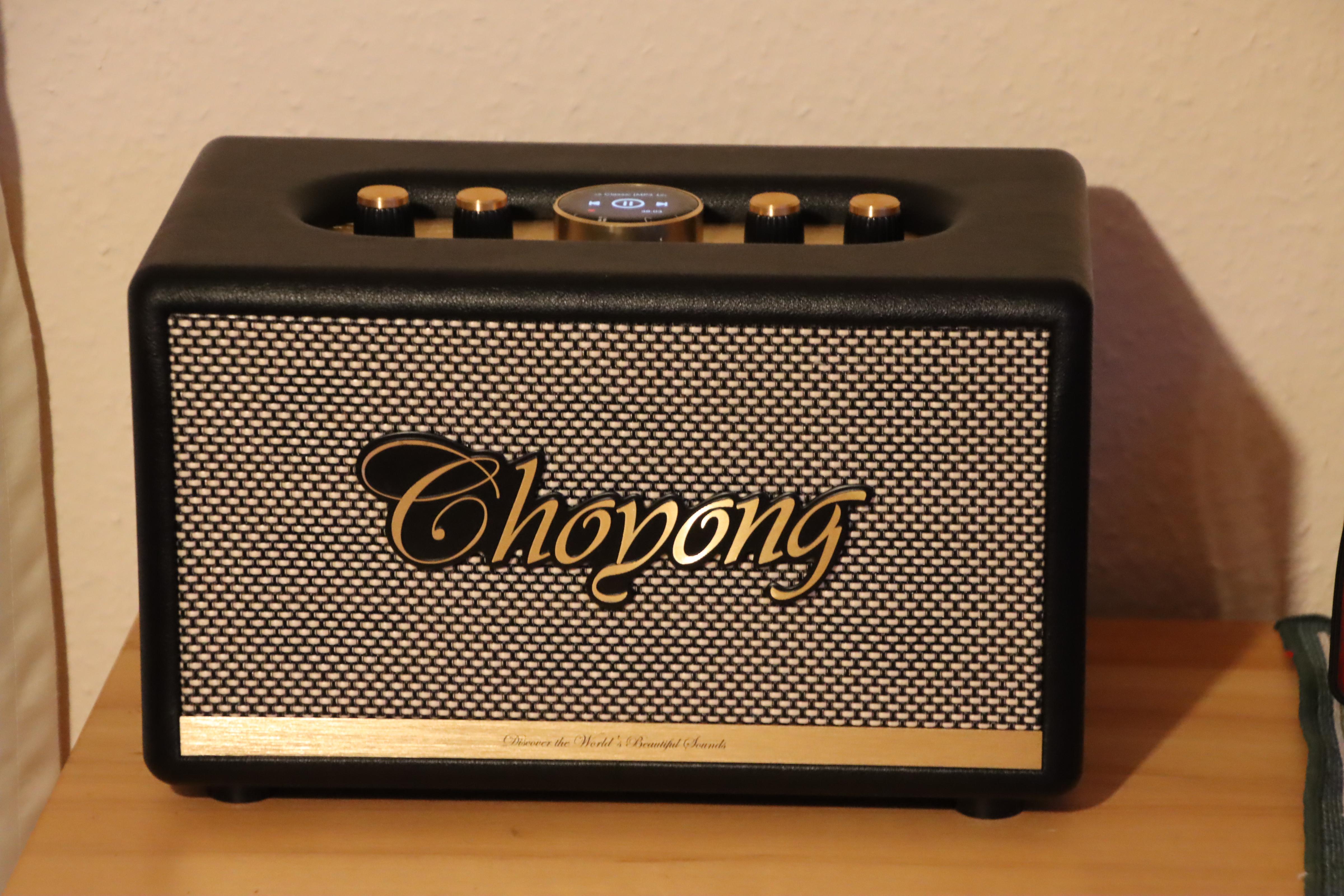
Maestro C2
Getting started
The Maestro C2 is equipped for mains operation (110–240 volts). To start it up for the first time, press the switch on the back of the device for at least 3 seconds. The radio will then start up with the Choyong logo, followed by a visually appealing display with four + two symbols, which will be explained below.
For initial startup, the device must be connected to the local Wi-Fi network. To do this, “slide” the logo with the clock and the four + two symbols to the right with your finger. A new menu will appear. The third item, “Settings,” is crucial for initial startup. Under the “WI-FI” item, you will find the available modems under the “List” menu item. Once you have selected your own modem, you can enter the network key. After confirming with OK, the initial setup is complete and you are ready to go. Alternatively, if you do not have your own Wi-Fi internet connection, you can also activate “eSIM,” which can be ordered (for a fee) from the Choyong website.
In the settings menu, you can also change the backlighting, limit the playing time, and display the MAC & IMEI of the device. The “Version Information” menu item is particularly interesting, as it can also be used to install new versions or minor updates, which are provided by Choyong at irregular intervals.
With the new software version, there is now the option to set the desired language for podcasts. This allows you to set the system to display only podcasts in the desired language, for example, “German.”
In addition to the settings menu, there are two other options here: “Aux” activates the operation of an external device connected via RCA. This can be a CD player, a recorder, a digital MP3 player, or similar. There is a separate function in the main menu for controlling these devices.
Swiping to the right returns you to the colorful welcome logo: If you don't like the colors of this logo, press and hold the logo for three seconds and then swipe to the right once or several times to select one of the alternative images.
The main menu and channel search
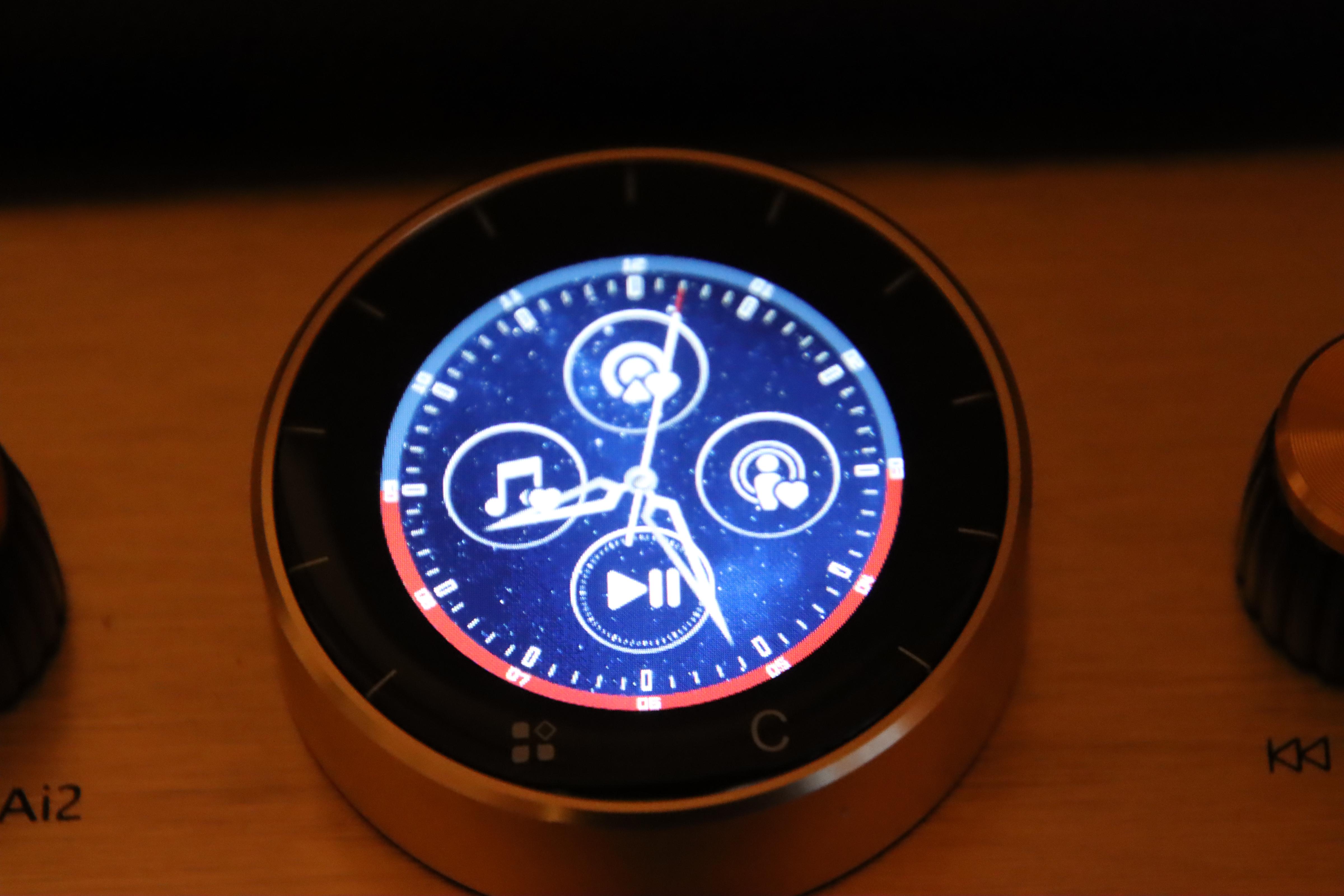
main menu
At the bottom left, there is a symbol with four dots. This opens a menu that is particularly important for searching for stations: here, you can select your favorite stations, sorted by continent and country, from approximately 50,000 stations from all over the world. If you can't find a station despite the wide selection, you can add as many stations as you like using the “Add” function. The “Search” function allows you to search for stations by voice (voice input). This will be discussed in detail in a later chapter.
As already described, the main or welcome menu displays the current time as well as four + two icons.
The four upper icons, arranged in a circle, are designed to improve user-friendliness and quick access to stations and music.
All icons can be operated with your finger.
The top icon lists all “favorite stations,” i.e., all stations that you have marked with a heart. To the right of this is an icon for favorite podcasts and to the left of this is an icon for favorite songs. The bottom of the four icons is used to control the connected “AUX” device (if available).
There are two more icons at the very bottom. The one on the right (“C”) takes you back to the currently activated list. For example, if one of your favorite stations has been activated, the “C” reactivates the station list display. The second icon (with the four dots) opens the menu for searching for stations and podcasts or setting your favorite stations and podcasts.
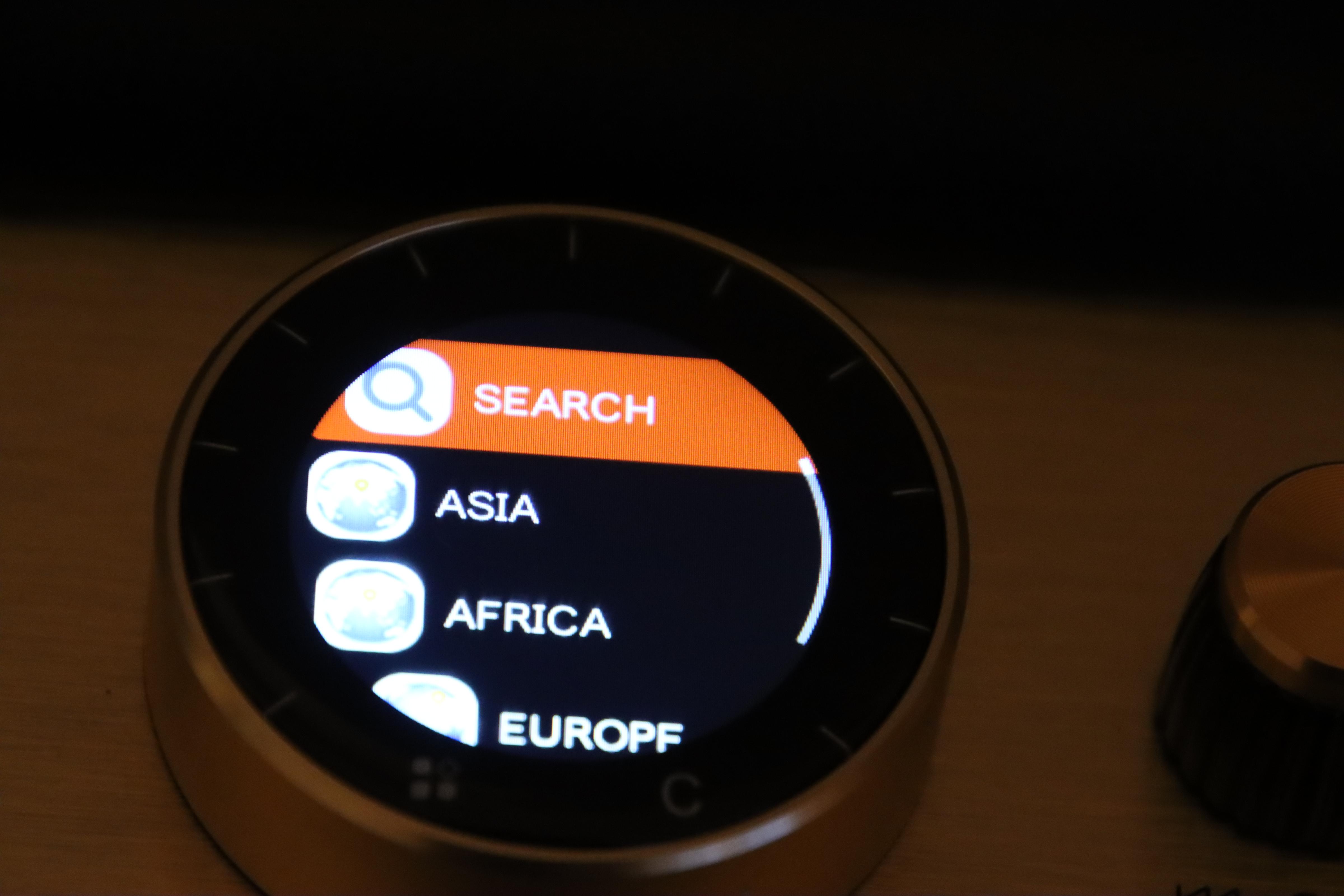
Channel search (excerpt)
The stations are sorted by continent and country. There are approximately 50,000 stations to choose from. In addition, there is a wealth of podcasts available, sorted by topic. Both stations and podcasts can be marked with a heart and selected for the favorites list. If a station cannot be found, you can add it using the “Add” function. With the “Search” function, you can search for a station directly with your own voice (voice input). For example, saying “Please play Kontrafunk” or simply ‘Kontrafunk’ will search for all stations that sound exactly like that or similar and display them as a list. This also works with other stations. For example, saying “BBC” will bring up the entire list of stations operated by BBC London.
Songs / Music
With the C2 Maestro, you can also search for and listen to individual songs or entire records. The search function allows you to search for stations, podcasts, and songs—all controlled by your own voice. You can search by song title, composer, or artist. So you can search for “The Magic Flute,” “Mozart,” “Beethoven,” “Brandenburg Concertos,” or even “Rolling Stones”—and you'll get a long list of hits. This works in English, German, and other languages. For many songs, the lyrics are also displayed. When a piece of music is playing, you can display the lyrics interactively.
The buttons
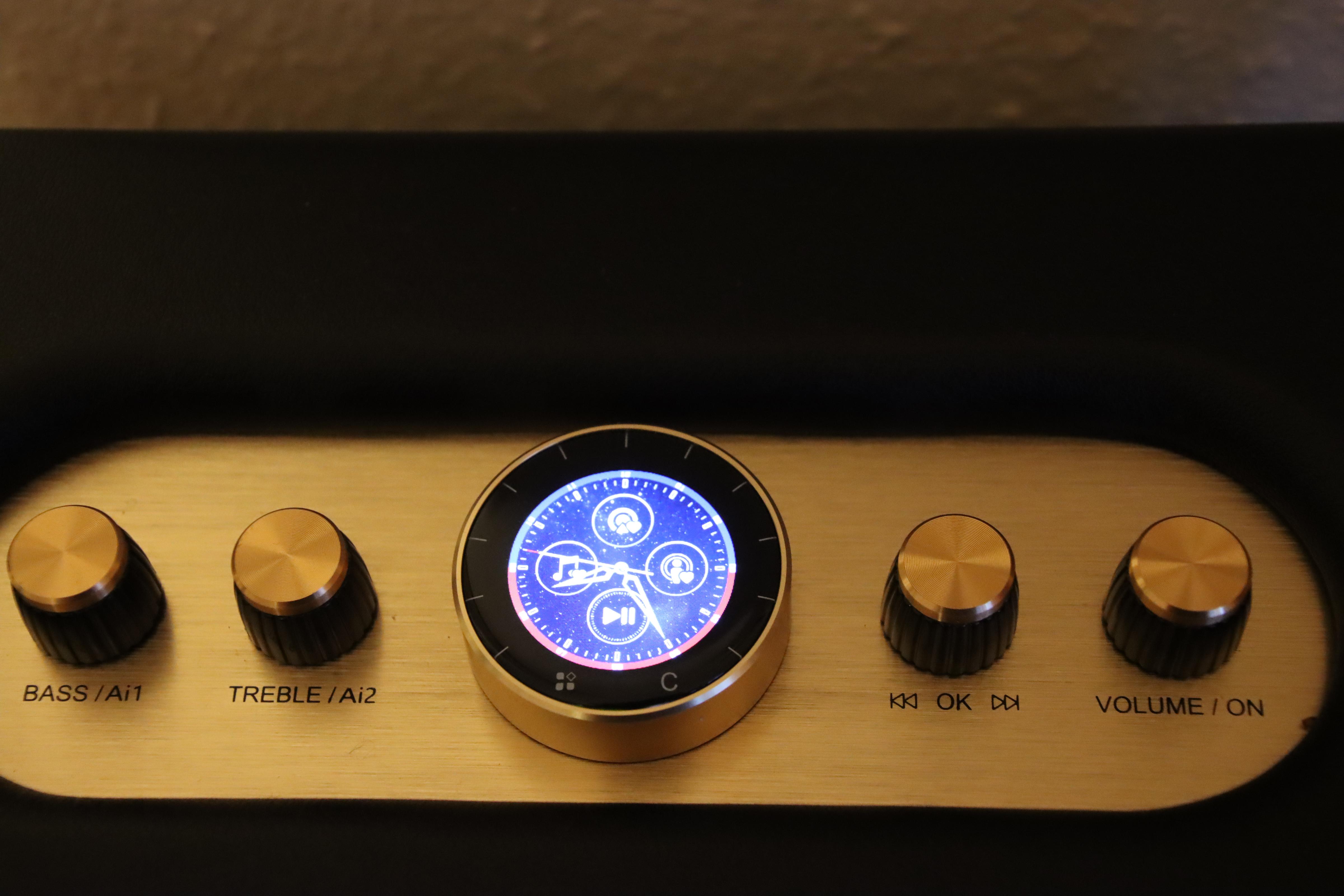
By turning the two left buttons, you can adjust the treble and bass levels of the speakers. Both buttons have another function: if you briefly press the “Bass / A1” button, you can search for a station using your voice—similar to the “Search” function in the menu already presented. So simply press, release, and speak. The “Treble/A2” button is particularly interesting, as it can be used to search for individual songs. The Maestro C2 offers a large collection of songs that can be accessed directly. Simply press the button and then say the title of the song or the name of the singer. The search and subsequent listing will begin immediately. If you particularly like a song, you can mark it as a favorite with the heart icon and then access it via the icon on the right in the main menu. With the first button on the right, you can either switch between the station you are listening to and the previous or next station in the list, or between songs, depending on what you have previously selected. The second button on the right, labeled “Volume / On,” turns the device on or off with a short press. Unlike the switch on the back, the rotary knob simply puts the device into standby (sleep) mode, so no initialization is required. You can also turn the button to change the volume (Pause / Sleep / Play).
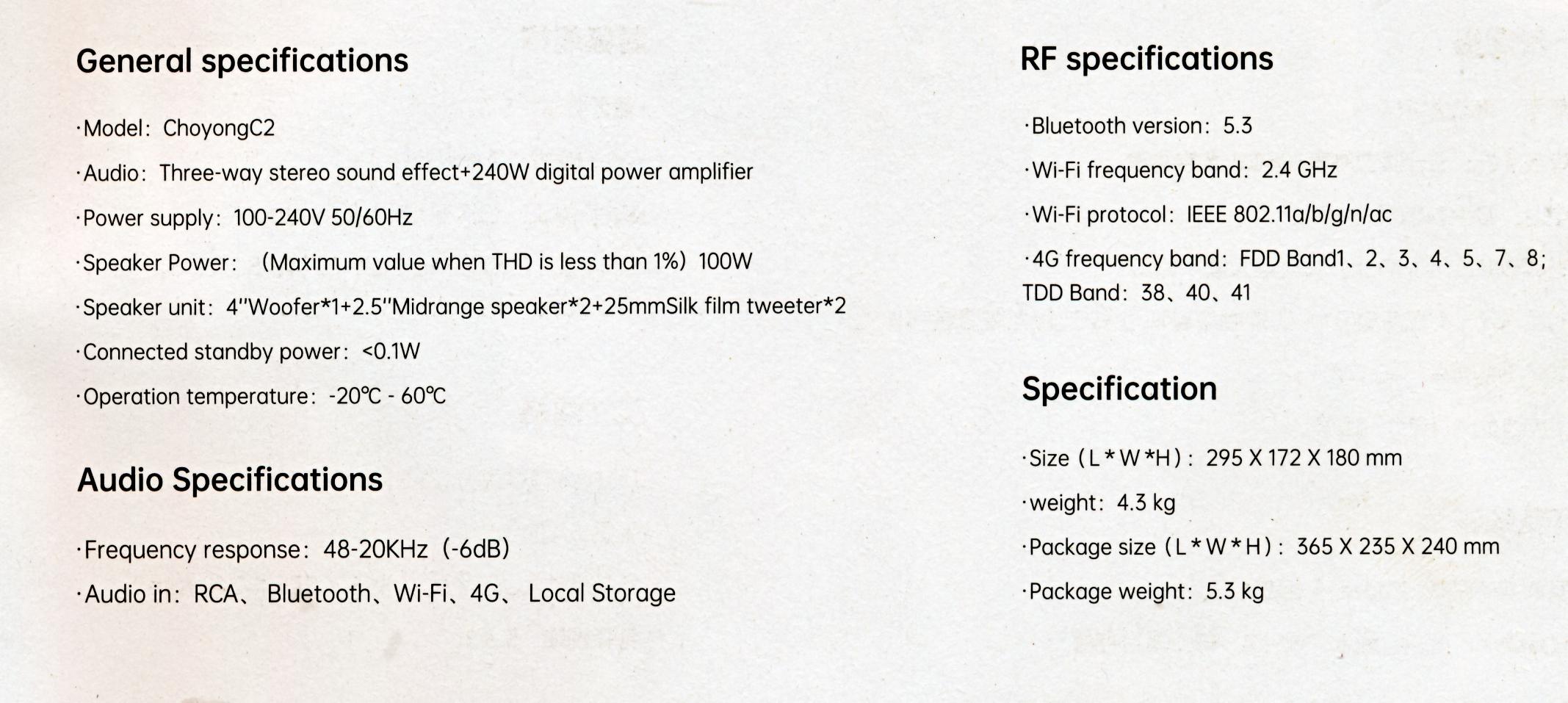
Technical data
Conclusion
The Maestro C2 is both an internet radio and a music box with extraordinary features—in an elegant design and covered in fine nappa leather. Depending on the data rate of the selected station or song, the C2 offers truly brilliant sound quality that is hard to find in other radios on the market. A truly unique feature is the ability to search for individual songs directly—at least, I am not aware of any other radio/player that offers this feature. It has a wide range of functions and options, and is really fun to use.
The Maestro is now also available in Europe, for example at amazon.de. The price: currently €308.00. You can also view and order the device directly from Choyong: https://shop.choyongradio.com.
Simply beautiful. That was my first impression when I unpacked it. The visual impression of the new “Maestro C2” from Choyong, based in Shenzhen in southern China, is overwhelming. Unusually beautiful design, comfortable layout of the controls, and an amazing feel. Clad in fine nappa leather, the 4.3-kilogram radio makes an extremely high-quality impression, which is reinforced after initial registration. A whole new dimension in radio with a sound quality that is rarely found in new radios today. Choyong, known for its interesting and unusual developments in the field of radio, presents the Maestro C2, an internet radio that focuses on more than just variety. It is the attention to detail that is often lacking in internet radios. The fact that the radio weighs a hefty 4.3 kg is not surprising when you take a closer look at the features: 2 tweeters, 2 midrange speakers, and 1 subwoofer—240 watts—and everything is individually adjustable.
Initial setup and operation can be challenging, as only a very brief “Quick Start Guide” is currently provided in English and Chinese. However, it is to be expected that the manufacturer will soon provide a German-language version, as well as a detailed operating manual and a German user interface. Not least for this reason, and to make it easier to get started, this report will discuss how to operate the C2.
Maestro C2
Getting started
The Maestro C2 is equipped for mains operation (110–240 volts). To start it up for the first time, press the switch on the back of the device for at least 3 seconds. The radio will then start up with the Choyong logo, followed by a visually appealing display with four + two symbols, which will be explained below.
For initial startup, the device must be connected to the local Wi-Fi network. To do this, “slide” the logo with the clock and the four + two symbols to the right with your finger. A new menu will appear. The third item, “Settings,” is crucial for initial startup. Under the “WI-FI” item, you will find the available modems under the “List” menu item. Once you have selected your own modem, you can enter the network key. After confirming with OK, the initial setup is complete and you are ready to go. Alternatively, if you do not have your own Wi-Fi internet connection, you can also activate “eSIM,” which can be ordered (for a fee) from the Choyong website.
In the settings menu, you can also change the backlighting, limit the playing time, and display the MAC & IMEI of the device. The “Version Information” menu item is particularly interesting, as it can also be used to install new versions or minor updates, which are provided by Choyong at irregular intervals.
With the new software version, there is now the option to set the desired language for podcasts. This allows you to set the system to display only podcasts in the desired language, for example, “German.”
In addition to the settings menu, there are two other options here: “Aux” activates the operation of an external device connected via RCA. This can be a CD player, a recorder, a digital MP3 player, or similar. There is a separate function in the main menu for controlling these devices.
Swiping to the right returns you to the colorful welcome logo: If you don't like the colors of this logo, press and hold the logo for three seconds and then swipe to the right once or several times to select one of the alternative images.
The main menu and channel search
main menu
At the bottom left, there is a symbol with four dots. This opens a menu that is particularly important for searching for stations: here, you can select your favorite stations, sorted by continent and country, from approximately 50,000 stations from all over the world. If you can't find a station despite the wide selection, you can add as many stations as you like using the “Add” function. The “Search” function allows you to search for stations by voice (voice input). This will be discussed in detail in a later chapter.
As already described, the main or welcome menu displays the current time as well as four + two icons.
The four upper icons, arranged in a circle, are designed to improve user-friendliness and quick access to stations and music.
All icons can be operated with your finger.
The top icon lists all “favorite stations,” i.e., all stations that you have marked with a heart. To the right of this is an icon for favorite podcasts and to the left of this is an icon for favorite songs. The bottom of the four icons is used to control the connected “AUX” device (if available).
There are two more icons at the very bottom. The one on the right (“C”) takes you back to the currently activated list. For example, if one of your favorite stations has been activated, the “C” reactivates the station list display. The second icon (with the four dots) opens the menu for searching for stations and podcasts or setting your favorite stations and podcasts.
Channel search (excerpt)
The stations are sorted by continent and country. There are approximately 50,000 stations to choose from. In addition, there is a wealth of podcasts available, sorted by topic. Both stations and podcasts can be marked with a heart and selected for the favorites list. If a station cannot be found, you can add it using the “Add” function. With the “Search” function, you can search for a station directly with your own voice (voice input). For example, saying “Please play Kontrafunk” or simply ‘Kontrafunk’ will search for all stations that sound exactly like that or similar and display them as a list. This also works with other stations. For example, saying “BBC” will bring up the entire list of stations operated by BBC London.
Songs / Music
With the C2 Maestro, you can also search for and listen to individual songs or entire records. The search function allows you to search for stations, podcasts, and songs—all controlled by your own voice. You can search by song title, composer, or artist. So you can search for “The Magic Flute,” “Mozart,” “Beethoven,” “Brandenburg Concertos,” or even “Rolling Stones”—and you'll get a long list of hits. This works in English, German, and other languages. For many songs, the lyrics are also displayed. When a piece of music is playing, you can display the lyrics interactively.
The buttons
By turning the two left buttons, you can adjust the treble and bass levels of the speakers. Both buttons have another function: if you briefly press the “Bass / A1” button, you can search for a station using your voice—similar to the “Search” function in the menu already presented. So simply press, release, and speak. The “Treble/A2” button is particularly interesting, as it can be used to search for individual songs. The Maestro C2 offers a large collection of songs that can be accessed directly. Simply press the button and then say the title of the song or the name of the singer. The search and subsequent listing will begin immediately. If you particularly like a song, you can mark it as a favorite with the heart icon and then access it via the icon on the right in the main menu. With the first button on the right, you can either switch between the station you are listening to and the previous or next station in the list, or between songs, depending on what you have previously selected. The second button on the right, labeled “Volume / On,” turns the device on or off with a short press. Unlike the switch on the back, the rotary knob simply puts the device into standby (sleep) mode, so no initialization is required. You can also turn the button to change the volume (Pause / Sleep / Play).
Technical data
Conclusion
The Maestro C2 is both an internet radio and a music box with extraordinary features—in an elegant design and covered in fine nappa leather. Depending on the data rate of the selected station or song, the C2 offers truly brilliant sound quality that is hard to find in other radios on the market. A truly unique feature is the ability to search for individual songs directly—at least, I am not aware of any other radio/player that offers this feature. It has a wide range of functions and options, and is really fun to use.
The Maestro is now also available in Europe, for example at amazon.de. The price: currently €308.00. You can also view and order the device directly from Choyong: https://shop.choyongradio.com.